In our seminar rooms or comfortably from home!
We support you as a consultant, organizer, and implementation partner for IT-qualifications, IT-projects, and Data Centre training
News: EPI joins the TÜV NORD GROUP
This marks a significant milestone in EPI’s 38-year journey, strengthening its position to serve customers while continuing to operate independently under the EPI brand
Our bestseller workshops

 PDF
PDF


Seminartermine nach Kategorien
You can rent our seminar rooms!
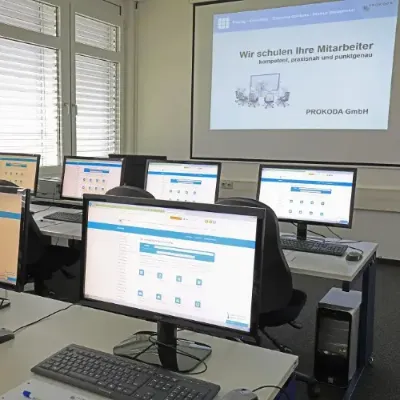
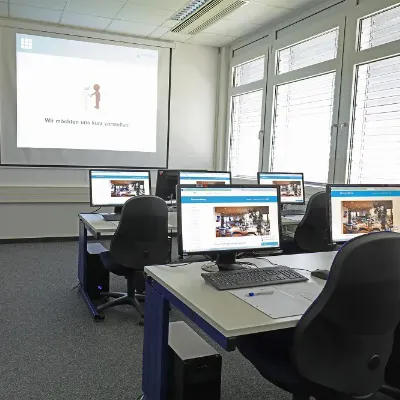
Your booking with us is transparent and flexible, without hidden costs. Our seminar rooms in Cologne not only offer pleasant air conditioning, but are also equipped with high-quality technology such as PCs, flat screens and projectors.

From macro recording to your own VBA procedures
Make your daily work easier with macros and VBA in Excel 365!
In this intensive 2‑day workshop, you will learn how to automate routine tasks, develop your own functions and procedures, and significantly extend Excel’s capabilities.
You will discover how to work with simple programming rules, properties, methods, and events, how to structure macros professionally, and how to build user‑friendly solutions for your daily work.
Whether data processing, formatting, or automated reporting — your own macros and VBA scripts will save you time, effort, and repetitive work.
Our experienced trainers will show you:
- how to accelerate your VBA learning curve through clear rules and structure
- how to work with properties, methods, and events — the foundation of macro programming
- what to record with the macro recorder — and what commands you should know manually
- how to write clean, maintainable VBA code with clear structure
- how to build custom tabs, menu extensions, and user‑friendly Excel tools
Your Benefits at a Glance
- Efficient introduction to macro and VBA programming
- Step‑by‑step explanations of macros, procedures, and functions
- Best practices for formatting, data preparation & user interfaces
- Numerous macro solutions ready for immediate use
- Hybrid training: attend on-site or live online
Seminar Content
Macro and VBA Know‑How
- Accelerate your VBA learning with simple core rules
- The essentials of macro programming: properties, methods & events
- What to record — and which commands to write manually
- Write clean, structured, maintainable VBA code
- Overview of the Excel object model
- Create your own ribbon tabs and menu extensions
Extending Excel’s Command Capabilities
- Macros for formatting, sorting & filtering large datasets
- Developing your own functions and procedures for business applications
- Automating recurring tasks completely
Routine Tasks for Lists and Tables
- Optimizing data preparation using macros
- Controlling processes with parameters
- Integrating file and folder selection dialogs
- Using automation to avoid errors
- Automatically deleting empty or special rows
- Distributing rows across multiple worksheets
- Merging data ranges from various files
- Advanced filtering with VBA
- Setting up automated data imports
User‑Friendly Interfaces
- Best practices for usability in Excel
- Designing and using effective UserForms
Target Audience
- Users who want to deepen and expand their macro knowledge
- Advanced Excel users who want to implement typical solutions with VBA
- Professionals who want to automate data processes and use Excel more efficiently
Prerequisites
- Basic knowledge of macro recording and experience with the VBA editor is helpful
Understand and use macros productively – no programming required
Discover how easy it is to automate everyday tasks in Excel using macros — without any programming skills.
In this practical seminar, you will learn how to record macros, adjust them, and run them with a single click to complete routine tasks faster, more securely, and with fewer errors.
You will learn how to integrate your macros into the ribbon, automatically assign number formats, or create PivotTables with just one click. This hands‑on course gives you confidence in working with Excel macros and shows you how to tailor Excel perfectly to your personal workflows.
Our experienced trainers will show you:
- how to use macros effectively to automate recurring tasks
- how to operate the macro recorder safely and structure macros logically
- how to run, share, and protect macros from unauthorized access
- how to optimize Excel interfaces, reports, and Pivot analyses using macros
- how to avoid common errors — and how to inspect macros in the VBA editor if needed
Your Benefits at a Glance
- Practical Excel 365 macro training — no programming required
- Automate recurring tasks with just a few clicks
- Learn to create, run, and share macros safely
- Numerous real‑world examples for immediate workplace use
- Hybrid workshop: join on-site or live online
- Includes a tailored handbook and step‑by‑step instructions
Seminar Content
Macro Basics
- What can macros do for you?
- Preparing Excel for macro usage
- Working with the macro recorder
- Relative vs. absolute references — what’s the difference?
- Adding macros as buttons in the ribbon
Nice to Know About Macros
- Starting macros via buttons
- Advantages of the personal macro workbook
- Setting up macro security correctly
- Protecting macros from unauthorized access
- Sharing macros with colleagues
- Handling error messages properly
- First look into the VBA editor
Now Let the Macros Work for You
- Format and edit tables at the press of a button
- Automatically assign custom number formats
- Customize the Excel interface using macros
- Filter data and calculate subtotals efficiently
- Apply conditional formatting automatically
- Create and edit PivotTables faster using macros
Target Audience
- Anyone who wants to automate routine tasks and save time
- Users who want to understand macros and use them purposefully
- Anyone curious about what macros can do behind the scenes
Prerequisites
- Good basic knowledge of Excel
- Experience creating and adjusting PivotTables is helpful
Visualize your business metrics intelligently and clearly
In this practical 2‑day Excel workshop, you will learn how to create, design, and use interactive dashboards and reports in Microsoft Excel to support data‑driven decision‑making.
You will discover how to use PivotTables, slicers, modern charts, and form controls to transform complex datasets into clear, dynamic, and compelling visualizations. Whether you need a management dashboard, controlling cockpit, or KPI report — after this seminar, you will present your metrics professionally, understandably, and visually appealing.
Our experienced trainers will show you:
- how to build dynamic status reports, rolling time periods, and KPI visualizations
- how to structure and analyze complex datasets effectively
- which chart types, formatting options, and controls are best suited for your dashboard
- how to use modern visualizations such as gauge charts and waterfall charts
- how to optimize dashboards for management, reporting, and presentations
Your Benefits at a Glance
- Create interactive dashboards, KPI reports & management cockpits
- Prepare metrics visually, clearly, and data‑driven
- Hands‑on tips, best practices & practical exercises
- Hybrid workshop: join on-site or live online
- Inspiration for modern, well‑designed dashboard layouts
Seminar Content
Design Rules for Tables
- Use cell formats to improve readability
- Apply custom formats for clearer structures
- Navigate and manage large workbooks efficiently
Data Analysis with Excel
- Structure tables and lists effectively
- Create dynamic (intelligent) tables
- Build multidimensional analyses with PivotTables
The Foundation of Dashboards: Reports
- Create dynamic status reports
- Build KPI visualizations with traffic light indicators or color coding
- Calculate and display rolling time periods
- Aggregate and analyze date‑based data
Management Dashboards & Cockpits
- Build interactive dashboards from your reports
- Filter flexibly with slicers, timelines, and form controls
- Integrate sparklines, mini charts & conditional formatting
- Use page layout and print areas professionally
Choosing the Right Charts for Your Dashboard
- Select the optimal chart type for each KPI
- Work with waterfall charts, gauge charts & multidimensional visuals
- Apply consistent axis scaling & dynamic labels
- Animate charts and optimize for presentations
Integration into PowerPoint
- Insert tables and charts into PowerPoint professionally
- Best practices for transferring data
- Start Excel during a presentation & display relevant tables live
Target Audience
This seminar is ideal for anyone who regularly analyzes large datasets and wants to create meaningful dashboards and KPI reports.
Ideal for:
- Professionals in controlling, finance, business intelligence, reporting or management
- Managers and analysts who want to visualize data‑driven decisions
- Excel users who want to design professional interactive dashboards
Prerequisites
- Solid basic knowledge of Microsoft Excel
- Experience with formulas, charts, and tables is helpful for optimal use of dashboard functions
Experience how Microsoft Copilot revolutionizes your daily Excel work!
In this practical training, you will learn how to clean, analyze, and visualize data automatically with AI support.
You will discover how Copilot assists you in creating formulas, dashboards, and analyses — and how to automate recurring tasks with just a few clicks.
Whether you are a beginner or an experienced Excel professional, this course shows you how to save time, avoid errors, and work significantly smarter with Copilot.
Our experienced trainers will show you:
- how Copilot interprets, analyzes, and visualizes Excel data
- how to guide, review, and improve AI-generated suggestions
- how to write prompts that deliver precise analyses and charts
- how to combine manual Excel techniques (Pivot, filters, formulas) with intelligent automation
- how to use AI effectively without losing control over your decisions
Your Highlights
- Analyze, clean, and interpret data with Copilot
- Create automated charts, dashboards, and reports
- Simulate scenarios and make data-driven decisions
- Use AI-powered formulas, macros, and workflows
- Hands-on exercises with your own data and prompts
- Attend on-site or in hybrid/online format
Topics at a Glance
Getting Started Without Copilot
- Classic data analysis using PivotTables, filters, and formulas
- Understanding the benefits and added value of Copilot
What Copilot Does With It
- Understanding AI support: suggestions, cleaning, formula creation
- Opportunities and limitations of automation
Pivot & Dashboards
- Structuring, combining, and analyzing data
- Automated top lists and visualizations using Copilot
- Creating dashboards with charts, KPIs, and filter logic
Scenarios & Goal Seeking
- Goal Seek, What‑If analysis, and simulations
- Parameter control and AI-based decision recommendations
KPI Analysis
- Calculating, filtering, and interpreting key performance indicators
- Pattern recognition, grouping, and categorization with AI
Consolidation
- Comparing tables manually and automatically
- Creating differences, overlaps, and consolidated summaries
Final Project
- Mini case study from your own work environment
- Developing prompts, combining Copilot results, and evaluating them critically
Prerequisites
- Basic knowledge of Excel
- Initial experience with data analysis, PivotTables, or chart creation is helpful but not required
Target Audience
This course is ideal for anyone working with Excel who wants to understand how AI can make them more efficient, especially:
- Office users, controllers, project managers, and reporting specialists
- Anyone who analyzes data, creates reports, or automates processes
- Users who want to work more productively with Excel in the Microsoft 365 environment
Understand Excel deeply – and use Copilot consciously, safely, and effectively
Mastering Excel is one thing – using Copilot purposefully is another.
In this seminar, you will learn how to use Copilot intentionally and in control, enabling you to analyze, structure, and interpret Excel data more efficiently while still making informed, human decisions.
You begin with classic Excel tasks, check your results manually, and then compare them with Copilot-generated solutions. This approach lets you immediately see which suggestions are helpful — and where you need to step in. Practical, transparent, and never a blind flight.
Your Benefits at a Glance
- Use Copilot purposefully to complete Excel tasks faster and more efficiently
- Translate complex questions into clear and effective prompts
- Understand, review, and refine Copilot-generated results
- Analyze, structure, and visualize Excel data with confidence
- Make informed decisions without blindly relying on automation
Course Content
Day 1 – Understanding Excel, Using Copilot Purposefully
Copilot Introduction
- Interface, requirements, access in Microsoft 365
- Introduction to prompt logic and interaction
- Examples of clear vs. unclear inputs
Tables & Structure
- Create, structure, and filter professional Excel tables
- Review suggestions for data cleaning & transformation
Functions & Logic
- Understand IF(), XLOOKUP(), AVERAGE(), etc.
- Let Copilot generate, explain, and correct formulas
Data Cleaning
- Manual error correction & format validation
- Evaluate Copilot’s automated cleaning proposals
Visualization
- Create charts & PivotTables manually
- Use Copilot for analytical and visual suggestions
Prompt Practice
- Develop and test prompts
- Compare variations, refine inputs
Day 2 – Analysis, Pivot & Decision Support
PivotTables & Dashboards
- Structure, combine, and analyze data
- Automated top lists and visual insights
Scenarios & Goal Seeking
- Goal Seek, What‑If analysis
- Parameter simulation & recommendations
KPI Analysis
- Calculate and filter key performance indicators
- Grouping, pattern recognition, categorization
Consolidation
- Compare and validate tables manually
- Summaries, differences, overlaps
Final Project
- Mini case study from your own work environment
- Prompting, combining, critically evaluating results
Prerequisites
- Microsoft 365 E3 or E5 with an active Copilot license
- Latest version of Excel Desktop
- Microsoft Teams access (files & communication)
- Solid Excel skills (tables, formulas, PivotTables)
Target Audience
- Team leaders, project managers, administrative staff
- Professionals with Excel experience who want to use Copilot effectively
- Employees in procurement, sales, controlling, or administration
- Users who want to write effective prompts and evaluate results critically
Data Centre training for many companies:
These customers already trust us
Maximize the security and efficiency of your data center with our certified Data Centre Training. Our practical training courses provide essential know-how on the design, operation and compliance of data centers. Through continuous training, you reduce downtime, minimize sources of error and meet international standards. Benefit from recognised certifications with the globally accredited training courses from PROKODA GmbH & EPI.