In our seminar rooms or comfortably from home!
We support you as a consultant, organizer, and implementation partner for IT-qualifications, IT-projects, and Data Centre training
News: EPI joins the TÜV NORD GROUP
This marks a significant milestone in EPI’s 38-year journey, strengthening its position to serve customers while continuing to operate independently under the EPI brand
Our bestseller workshops

 PDF
PDF


Seminartermine nach Kategorien
You can rent our seminar rooms!
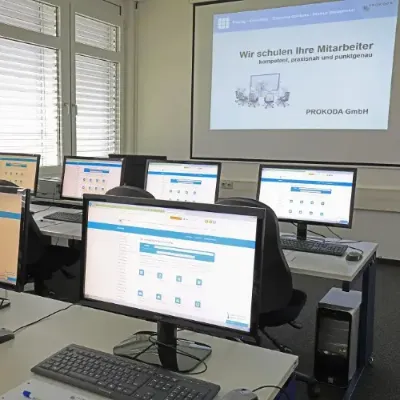
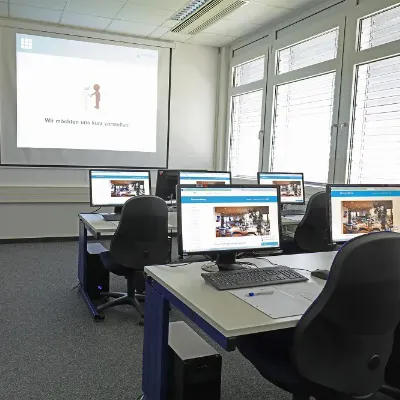
Your booking with us is transparent and flexible, without hidden costs. Our seminar rooms in Cologne not only offer pleasant air conditioning, but are also equipped with high-quality technology such as PCs, flat screens and projectors.

Creating and Optimizing Professional Presentations
In this workshop, participants learn hands-on how to use PowerPoint efficiently, design appealing presentations, and avoid common issues such as incorrect slide formats or unsuitable layouts. The course covers both technical techniques and creative design options to help you create professional and customized presentations.
Your Benefits
- Create presentations in the correct format (16:9 instead of 4:3)
- Anchor your own slide layouts in the Slide Master
- Design text and videos in an engaging way
- Build interactive presentations with buttons and animations
- Export presentations as handouts, PDFs, or videos
- Practical tips for optimizing and structuring presentations
Course Content
Creating Custom Text Layouts
- Use placeholders efficiently
- Anchor custom layouts in the Slide Master
- Define custom input prompts
- Enhancing Text with Animations
Working with Videos
- Insert and present videos
- Play videos across multiple slides
- Use videos as slide backgrounds
- Create subtitles for videos
Presenting Your Slideshow
- Keyboard shortcuts for screen control
- Insert and use interactive buttons
- Create looping slides for the start of a presentation
- Change slide format from 4:3 to 16:9
Beyond PowerPoint
- Export presentation content to Word
- Create a video from your presentation
- Export the presentation as a PDF
- Useful websites and tools for PowerPoint
Requirements
- Solid basic knowledge of PowerPoint is required
Target Group
- Users who want to professionalize their PowerPoint skills
- Individuals who want to create customized, engaging, and interactive presentations beyond standard features
- Anyone who wants to design, format, and export presentations efficiently
Power BI Workshop – Advanced Features & Practical Scenarios (1 Day)
Advanced techniques, automation & AI‑powered analytics
Expand your Power BI expertise and learn advanced techniques that help you design more efficient reports, automate processes, and perform deeper data analyses.
In this hands‑on 1‑day workshop, you will work with real‑world scenarios, advanced features, and AI‑powered visualizations to support smarter, data‑driven decisions.
Our experienced trainers will show you:
- how to use What‑If analyses, forecasting and simulation techniques effectively
- how to work efficiently with Dataflows, incremental refresh and DirectQuery
- how AI‑powered tools like Key Influencer Visuals and Quick Insights accelerate your analyses
- how to keep your reports clean, structured and scalable with Housekeeping best practices
- how to use Paginated Reports and PBIProjects for professional reporting workflows
Your Benefits at a Glance
- Intensive 1‑day workshop with hands‑on practice
- Practical application of advanced features: What‑If analyses, Dataflows, DirectQuery
- AI‑powered analytics for faster insights
- Tips & tricks for more efficient dashboards and improved performance
- Participation available on‑site or online
Workshop Content
Advanced Analytics & Simulation
- What‑If analyses
- Forecast simulations
- Scenario planning
Data Preparation & Automation
- Incremental refresh
- Power BI Dataflows
- Automated integration of various data sources
DirectQuery & Storage Modes
- Storage mode concepts
- Using DirectQuery efficiently
- Hybrid storage strategies
Versioning & Reporting Workflows
- Power BI Project versioning (PBIProjects)
- Structuring the development process
Paginated Reports
- Use cases
- Creation & formatting
- Integration into the Power BI Service
Housekeeping & Best Practices
- Display folders for measures
- Comments, descriptions & documentation
- Performance tips & structured report design
AI‑Supported Analytics
- Key Influencer Visual
- Quick Insights
- Use cases & limitations
Prerequisites
- Basic knowledge of Power BI Desktop or participation in “Power BI Fundamentals / Power BI Advanced”
- Experience with data modeling, pivot tables or dashboards is helpful
Target Audience
- Power BI users who want to apply advanced features and AI analytics
- Professionals in reporting, controlling, analytics & data‑driven teams
- Participants wishing to deepen their Power BI skills strategically
Efficient File Organization and Collaboration in the Cloud
In this course, participants learn how Teams, SharePoint, and OneDrive work together to store files centrally, collaborate on documents, and manage data securely. You will discover how to use cloud storage effectively to create structure, transparency, and efficiency in team collaboration.
Your Benefits
- Understand how Teams, SharePoint, and OneDrive are connected
- Work on the same documents with colleagues from any location
- Organize files securely and transparently using version history and sharing options
- Use modern cloud features for smooth teamwork and data transparency
- Optimize your file structure and reduce search time in your daily work
Course Content
Creating and Managing Files in Teams
- Create or upload new files
- Co-author documents simultaneously
- Edit files in Teams, in the browser, or in the desktop app
- Copy and move files
- Use the Files workspace in the navigation bar effectively
Understanding Cloud Storage
- Differences and interaction between SharePoint and OneDrive
- Structure of a team site and shared use within Microsoft 365
File Management in SharePoint
- Use version history and track changes
- Set up notifications and automatic updates
- Create file directories with Excel
- Share files and manage access permissions
Document Management with SharePoint Online
- Structure and layout of a document library
- Add and organize metadata
- Apply conditional formatting
- Create custom views
Using OneDrive Effectively
- Open OneDrive and understand the user interface
- Share files and folders
- Synchronize data and adjust sync settings in Windows Explorer
Requirements
Basic knowledge of Microsoft 365 or comparable experience with Office applications.
Target Group
Project managers, team leads, and users who want to store, manage, and share their files efficiently using Teams, SharePoint, and OneDrive.
Effective Communication and Team Organization with Microsoft Teams
Microsoft Teams has become the central hub of modern collaboration. In this seminar, participants learn how to structure teams effectively, use channels purposefully, and manage communication and file organization efficiently. In addition to the well‑known meeting features, you will discover how to use Teams as a central platform for organization, coordination, and project work.
Your Benefits
- Use Teams as a central workspace for communication, planning, and documentation
- Learn how to use teams, channels, and chats effectively for transparent collaboration
- Structure team spaces efficiently for departments or projects
- Connect Teams with OneNote and the cloud to manage files centrally
- Benefit from practical tips for efficient team organization and task coordination
Course Content
Interface & Navigation in Teams
- Elements of the navigation bar
- Managing your account and settings
- Overview of menus and functions
Communication Options in Teams
- Comparison of chat, meetings, and teams
- Effective use of group and private chats
- Planning and conducting meetings
Creating & Structuring Teams
- Team setup and role distribution
- Creating teams and adding members
- Creating and using standard, private, and shared channels
Posts & Conversations in Channels
- Creating posts with text, emojis, and stickers
- Converting posts into tasks
- Sending emails directly to a channel
Managing and Moderating Teams
- Key settings for team owners
- Channel moderation and permission management
- Creating tags and managing member groups
Collaboration with OneNote (Notes Tab)
- Getting started with OneNote Online
- Using the desktop app for advanced features
- Shared notebooks for teams and projects
File Management in Teams (Files Tab)
- Creating and uploading files in Teams
- Co‑authoring and commenting on documents
- Basics of working with cloud files (SharePoint & OneDrive)
Requirements
- Basic knowledge of Microsoft 365 or comparable experience with Office applications
Target Group
Project managers, team leads, and users who want to structure team collaboration, improve communication, and optimize digital workflows.
More Efficiency in Excel: Automate, Structure, Create Reports
In this hands-on Excel workshop, you will learn how to efficiently process, automate, and analyze lists and data. Using macros, conditions, and smart automation techniques, you will streamline your daily work and save valuable time.
You will discover how to perform automated checks, structured copying, and data consolidation, and how to present your results in meaningful reports. After this seminar, you will be able to manage large or complex Excel lists reliably and professionally.
Your Benefits at a Glance
- Learn macros and automation without needing to be a programming expert
- Optimize large datasets and create automated reports
- Save time and reduce errors with smart Excel techniques
- Hybrid workshop: participate on-site or live online
Seminar Content
Solutions with Programming / Macros
- Create your own macros and use them effectively
- Start macros directly from the worksheet
- Use variables and make automated decisions
- Understand and apply events purposefully
Automated List Processing
- Automated checks and structured list organization
- Copy rows containing specific values
- Consolidate data for reporting
- Remove empty rows and distribute large lists across multiple sheets
Creating Reports
- Save results as value copies
- Practical applications for reports and management summaries
Target Group
This seminar is designed for anyone who regularly prepares numbers and lists, especially:
- Business decision-makers
- Controllers
- Accounting staff
- Excel users who want to apply automation and macros in a practical way
Requirements
- Solid basic knowledge of Microsoft Excel
- Experience with tables, formulas, and basic functions is helpful
Data Centre training for many companies:
These customers already trust us
Maximize the security and efficiency of your data center with our certified Data Centre Training. Our practical training courses provide essential know-how on the design, operation and compliance of data centers. Through continuous training, you reduce downtime, minimize sources of error and meet international standards. Benefit from recognised certifications with the globally accredited training courses from PROKODA GmbH & EPI.